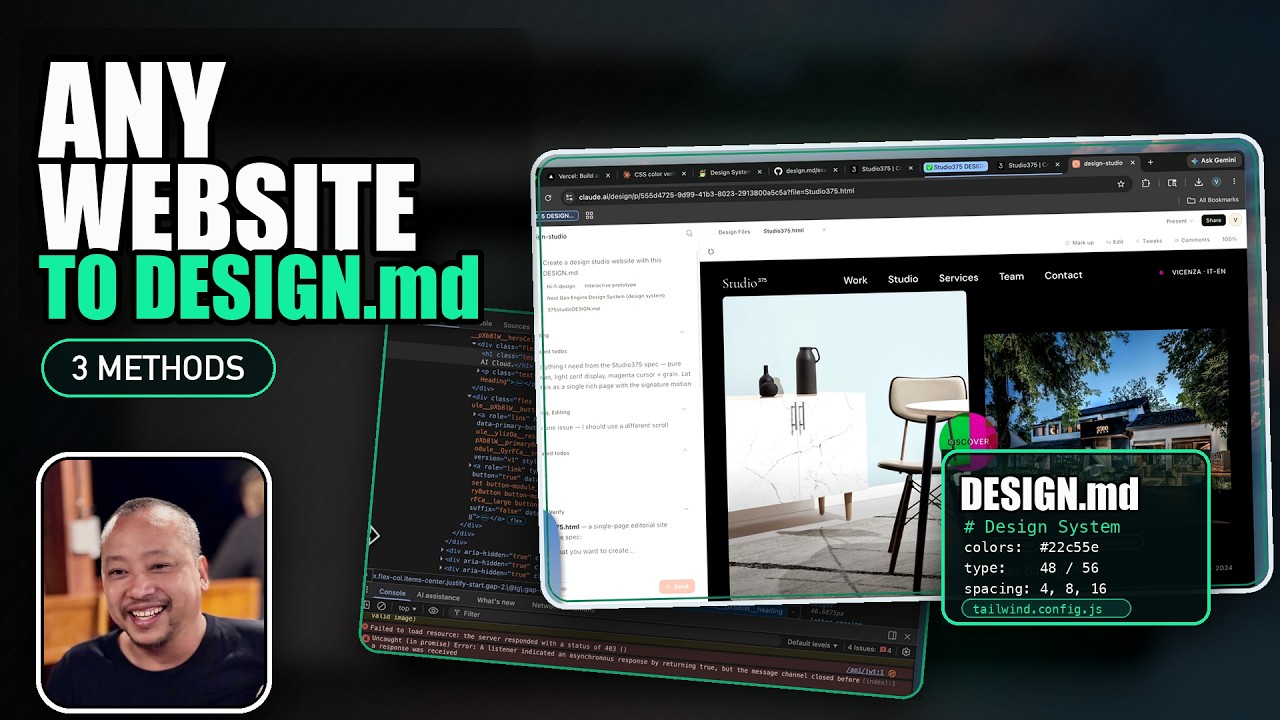
✦ Overview
CreativeDesignTools delivers an exhaustive, hands-on tutorial on extracting DESIGN.md files — Google's open-source design token specification — from any website using three progressive methods. From screenshot-based extraction with carefully crafted prompts, to running a JavaScript style-auditing script in DevTools, to fully automated Claude Code/Co-Work workflows, each method builds on the previous one. The video emphasizes review, validation, and understanding over blind AI trust — teaching you to catch AI hallucinations, validate with Google's linter, inspect computed styles in DevTools, and produce production-ready design files plus Tailwind configs.
1 What Is DESIGN.md & Why It Matters
The DESIGN.md file is a structured design token specification open-sourced by Google. It captures a website's entire visual identity — colors, typography, spacing, elevation, motion — in a single markdown file that any AI or developer can consume.
- Production-ready output — by the end of each method, you get a DESIGN.md file plus a Tailwind config you can drop straight into a project
- Three progressive methods — screenshot extraction, computed style script, and Claude Code/Co-Work automation. Each builds on the previous.
- Don't skip ahead — the methods are deliberately ordered so you learn to detect errors and validate AI output before automating
2 Resources — Where to Find DESIGN.md Files
Two key resources for understanding and finding DESIGN.md files:
- Google's open-source GitHub — the official architecture and structure specification. This is the reference every prompt should point to.
- getdesign.md — a community library of pre-extracted DESIGN.md files for major brands (BMW, HP, Airbnb, Airtable, AOL, etc.). Useful for reference but may be outdated — always verify against the live site.
3 Method 1 — Screenshot Extraction
The first method works from screenshots only — no access to the live site required. You capture key screens and feed them as context to Claude.
- What to capture — the main landing/home page, a secondary page with different components, and optionally logged-in dashboard views (sometimes uses a different design system)
- Three screenshot files — attach them as context to the AI prompt
- Limitation — AI is "guessing from pixels." Colors may be approximate, motion/animation values are always inferred, and there's no way to know CSS variable names.
- Best for — competitor analysis, design inspiration, sites you can't access programmatically
4 The Extraction Prompt — Anatomy & Hard Rules
A carefully structured prompt is the key to production-quality output on the first try.
- Reference URLs — point to Google's open-source DESIGN.md spec, the README, and example files. This gives AI a strict structural reference.
- Structure order — branding, colors, typography, layout, spacing — matching Google's canonical order
- Hard rules — (1) mirror the exact layout of the reference, (2) capture the full design system spirit, (3) use real hex values from the source, (4) use an
<!-- uncertain -->comment for values the AI isn't confident about - The uncertain flag — forces AI to mark guesses explicitly, dramatically reducing silent hallucination
- Single file output — instruct the AI to produce exactly one DESIGN.md file, nothing else
5 Reviewing AI Output — Catching Mistakes
The review step is critical. AI can silently "fix" or "invent" values that look reasonable but aren't what you want.
- Check dos and don'ts — make sure they're specific to YOUR design (e.g., "keep cards on white with soft purple-tinted shadows"), not generic boilerplate
- AI "fixing" things — example: a design had "walk, play, play" labels but the AI changed the third to "distance" because the metric was in kilometers. Smart, but changed designer's intent.
- Three categories — ask yourself: did it (1) change something, (2) fix something, or (3) invent something? Then decide if you keep it.
- Motion values are ALWAYS inferred — there's no way AI can detect animations from screenshots. Values come from Material 3 defaults.
- Search for "uncertain" — review all flagged items one by one against the original screenshots
6 Validation with Google's DESIGN.md Linter
Google provides an official linter for DESIGN.md files that validates structure and catches errors.
- Install & run —
npx design-lint path/to/DESIGN.md - Output — reports errors (structural problems) and warnings (style suggestions). Aim for zero errors.
- Why it matters — ensures your file follows the canonical structure, making it compatible with any tool that consumes DESIGN.md files
- After each method — always run the linter as a final validation step
7 Method 2 — Computed Styles from Live Websites
The second method reads the actual computed styles from a live website's browser rendering. No guessing — these are the real values.
- Computed style — the final, resolved CSS value after all stylesheets, variables, and inheritance. If a button uses
var(--primary-color), the computed style is the actual hex like#3b82f6. - Why better than screenshots — exact hex values, real font sizes, actual CSS variable names, border radii, spacing — all deterministic
- Source material — Awwwards nominees, competitor sites, any production website
- Client-side only — the script reads from the DOM, doesn't send anything to any server, doesn't install anything
8 The Style-Auditing Script — Deep Walkthrough
A JavaScript script that runs in DevTools console, walks every visible element, and extracts the full design system into JSON.
Script Steps
- Step 1 — Constants & helpers — filters out browser default colors (unvisited link blue, visited purple, transparent)
- Step 2 — CSS variables — walks every stylesheet including cross-domain, pulls all CSS variables
- Step 3 — Filter & categorize — separates into colors and brand-meaningful names via regex
- Step 4 — Keyframes — captures animation variable names for team intent
- Step 5 — Element walk — visits up to 4,000 elements, extracts color, background, border, radius, font properties. Groups into 7 buckets.
- Step 6 — Frequency count → JSON — sorts by usage frequency. Most-used values define the brand.
Security
- Always verify scripts — ask AI "is this script safe to run?" before pasting into DevTools
- 4,000 element cap — configurable. Bump to 6,000-10,000 for very large websites.
9 Turning JSON Results into a DESIGN.md
Feed the JSON output to Claude with a specialized prompt to generate the DESIGN.md file.
- The prompt — specify URL, brand name, attach JSON, reference Google's spec. Customize for each extraction.
- Hard rules — (1) colors appearing <3 times get "low confidence" comment, (2) each color gets a one-line comment citing frequency evidence
- Why frequency matters — forces AI to justify semantic role assignments. 2,340 uses = likely primary; 3 uses = probably noise.
- Dual design systems — the Vercel example revealed two naming conventions (geist and ds) coexisting. The AI recognized and handled both.
- Result structure — colors in tiers (surface, foreground, text, inverse, outline, primary), each with reasoning. Then typography, spacing, components — all canonical Google architecture.
10 Non-Determinism — Why Outputs Differ
Extracting DESIGN.md is inherently non-deterministic and open to interpretation.
- Library vs. reality — getdesign.md showed Vercel with white background; the live site is dark mode black. Libraries may be outdated.
- "Almost white" vs. "pure white" — script extracted #FAFAFA, not #FFFFFF. Both are "right" in different contexts.
- Declared but unused tokens — CSS variables exist in stylesheets but are never rendered. They show up but aren't part of the visual design.
- Don't assume AI is wrong — when Claude generates a value that seems off, investigate before correcting.
11 DevTools Verification — The Source of Truth
The browser's DevTools Computed tab is the deterministic source of truth.
- Open DevTools — right-click → Inspect, or Cmd+Option+J (Mac)
- Elements tab — hover over code to highlight elements, or use the selector tool to click on any element
- Computed tab — shows actual rendered values (not declared CSS). Use this over Styles tab for verification.
- What to check — background-color, border-radius (100px = pill shape), height (40px for CTA buttons), font properties
- Practical tip — the console panel can hide Elements. Drag the divider down if you can't see the code.
- Verification confirmed — CTA button's background color matched Claude Code's output exactly
12 Fluid Typography — Why Sizes Don't Match
A common gotcha: the script reports 48px but DevTools shows a different value. The reason is fluid (responsive) typography.
- Fluid typography — font sizes change based on viewport width using
clamp(). "48px" is one value at one viewport size. - Resize to see it change — dragging the browser window updates the font-size in real-time in the Computed tab
- Fixed vs. fluid tokens — the DESIGN.md should distinguish between fixed (14px body) and fluid tokens (heading that scales)
- Why this matters — recording only "48px" misses the responsive behavior. The prompt's hard rules instruct AI to label fluid typography separately.
13 Method 3 — Claude Code & Co-Work Automation
The third method automates the entire workflow using Claude Code CLI or Claude Co-Work.
The 8-Step Prompt
- Step 1 — Get oriented (visit URL + reference library)
- Step 2 — Element-by-element inventory
- Step 3 — Separate branding colors, decide fixed vs. fluid typography
- Step 4 — Drift check against library
- Step 5 — First-pass DESIGN.md
- Step 6 — Verify against live website
- Step 7 — Lint & export Tailwind config
- Step 8 — Report with both files
Claude Co-Work vs. Claude Code
- Co-Work UI — step-by-step progress with checkmarks. Opens reference site in browser tab. "More user-friendly."
- Claude Code terminal — same prompt, same steps, same output. For terminal-fluent users.
- Output — two files: DESIGN.md + Tailwind JSON config. Lint: 0 errors, 2 warnings.
14 Using DESIGN.md in a Real Project
Feeding the extracted DESIGN.md to Claude Design to generate a website with the exact same visual identity.
- Tailwind config integration — merge the exported JSON into your
tailwind.config. All tokens are ready to use. - Alternative exports — Universal Community Tokens format if you don't use Tailwind
- One-shot result — Claude Design produced a website with identical colors, cursor, and spirit — single prompt, no reprompting
- Not for copying — use extracted designs as reference. The DESIGN.md gives the foundation; the creativity is yours.
- Co-Work verification — the tool opened the reference website in a browser tab and verified all values before generating the final output
★ Key Takeaways
🔑 Key Takeaways
- DESIGN.md is Google's open-source design token spec — a single markdown file capturing colors, typography, spacing, motion, and elevation for any design system.
- Three progressive methods — (1) screenshot extraction, (2) computed style script, (3) Claude Code/Co-Work automation. Learn them in order.
- The "uncertain" comment trick — instruct AI to flag low-confidence values. Then search and review each one manually. Dramatically reduces silent hallucination.
- Motion values are always inferred from screenshots — AI borrows easing/duration from Material 3 defaults, not the source.
- AI will silently "fix" things — it might rename labels or adjust values. Always ask: did it change, fix, or invent?
- Frequency-based color assignment — colors used 2,000+ times are likely primary; fewer than 3 times is probably noise.
- DevTools Computed tab is the source of truth — the deterministic way to verify any value.
- Watch for fluid typography — "48px" may be one value in a responsive clamp() function. Size changes with viewport.
- Always validate with Google's linter —
npx design-lint DESIGN.mdcatches structural errors. - Production websites have messy realities — dual design systems, declared-but-unused tokens, outdated library entries.
- Tailwind config is a bonus deliverable — the process produces both DESIGN.md and a ready-to-merge Tailwind JSON.
- Learn the process before automating — "once you know the process, AI becomes a multiplier."
🔗 Resources & Links
- google-labs-code/design.md — Google's official open-source DESIGN.md specification and architecture on GitHub
- getdesign.md — Community library of pre-extracted DESIGN.md files for major brands (BMW, Airbnb, Vercel, etc.)
- Claude Code — Anthropic's CLI coding agent used in Method 3 for automated DESIGN.md extraction
- Claude Design — Anthropic's design tool for bringing your DESIGN.md into a real project with one prompt